


1. Introduction
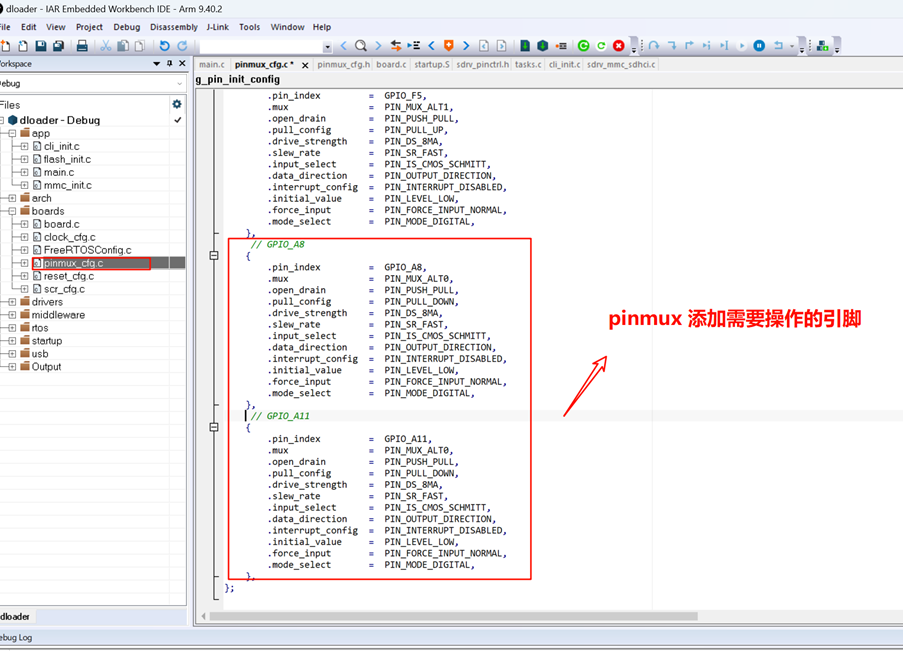
If you want to configure a specific pin to output a designated level during the download process, you can refer to the method introduced in this article using SDTOOL to control the specified pin during the download process.
Hardware Platform: SemiDrive E3640 Gateway Development Board
Software Platform: SemiDrive_E3_SSDK_PTG3.0
2. Operation Steps
2.1 Dloader Code Modification
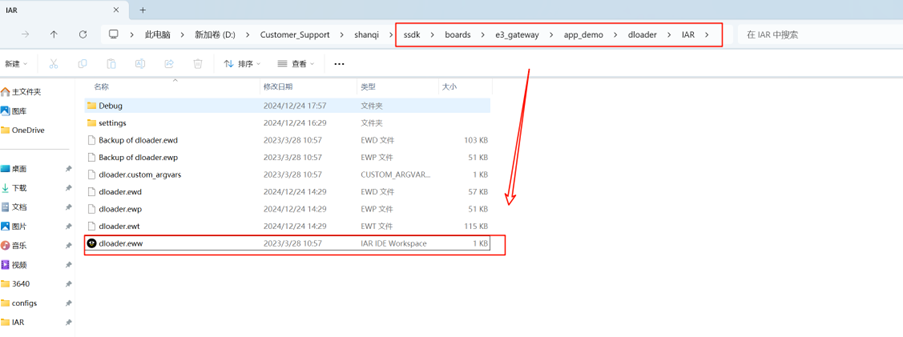
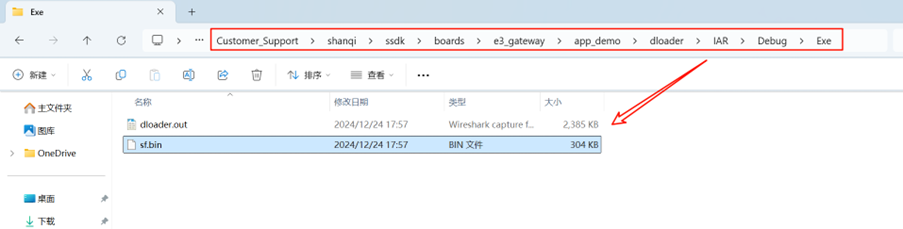
The Dloader project path is as follows:
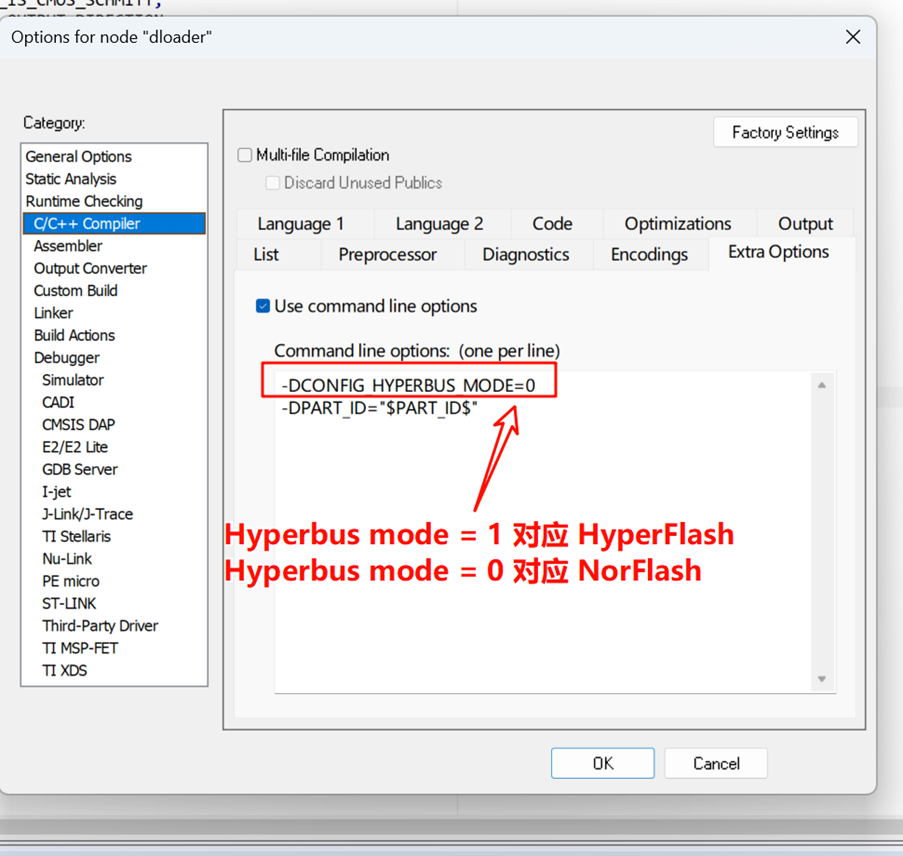
If the board uses NorFlash , the following changes are required:
Hyperbus mode = 1 corresponds to HyperFlash
Hyperbus mode = 0 corresponds to NorFlash
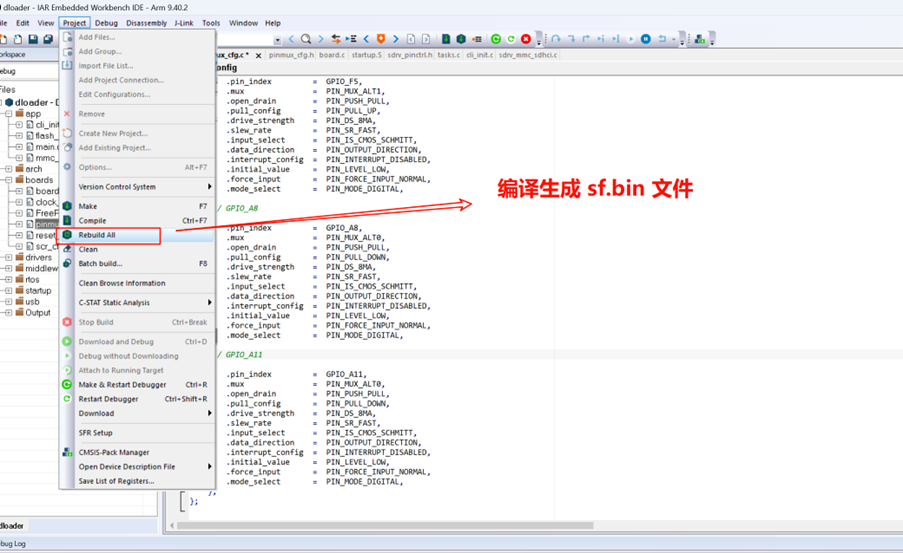
The generated bin file is shown below:
2.2 Generating a Signed Bin File
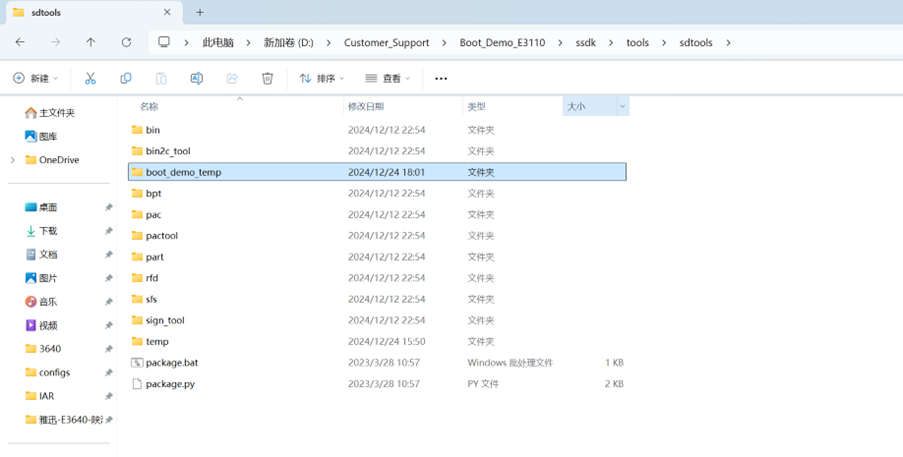
Create a new folder named "boot_demo_temp" in the path shown below:
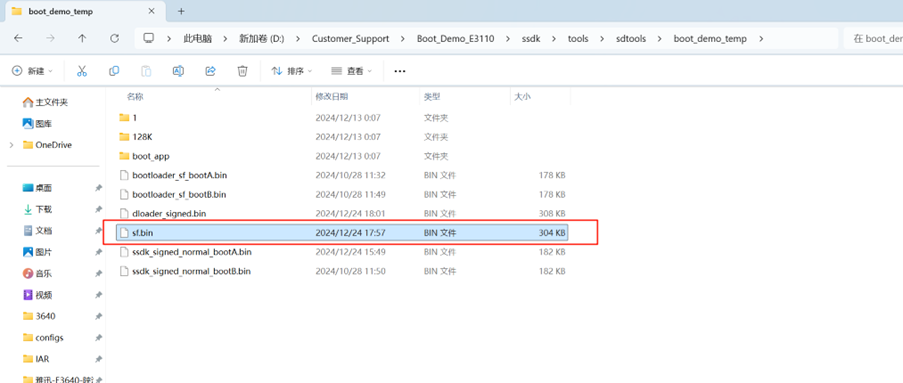
Copy the previously generated bin file into this folder:
Open the command line in this path:

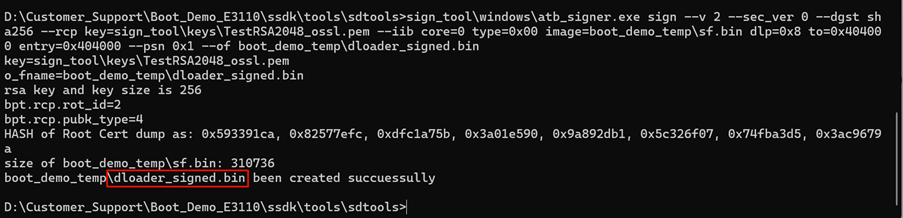
Enter the signing command:
sign_tool\windows\atb_signer.exe sign --v 2 --sec_ver 0 --dgst sha256 --rcp key=sign_tool\keys\TestRSA2048_ossl.pem --iib core=0 type=0x00 image=boot_demo_temp\sf.bin dlp=0x8 to=0x404000 entry=0x404000 --psn 0x1 --of boot_demo_temp\dloader_signed.bin
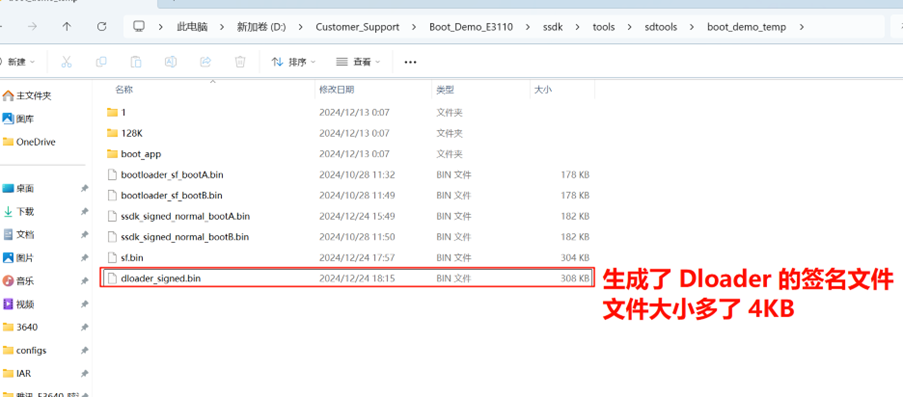
2.3 SDTOOL Operation
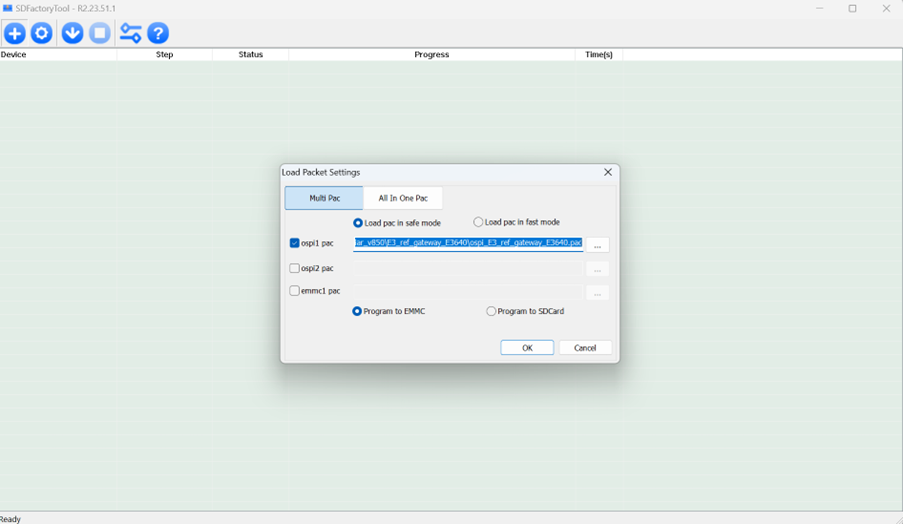
Open SDTOOL and select the PAC package for the specified chip:
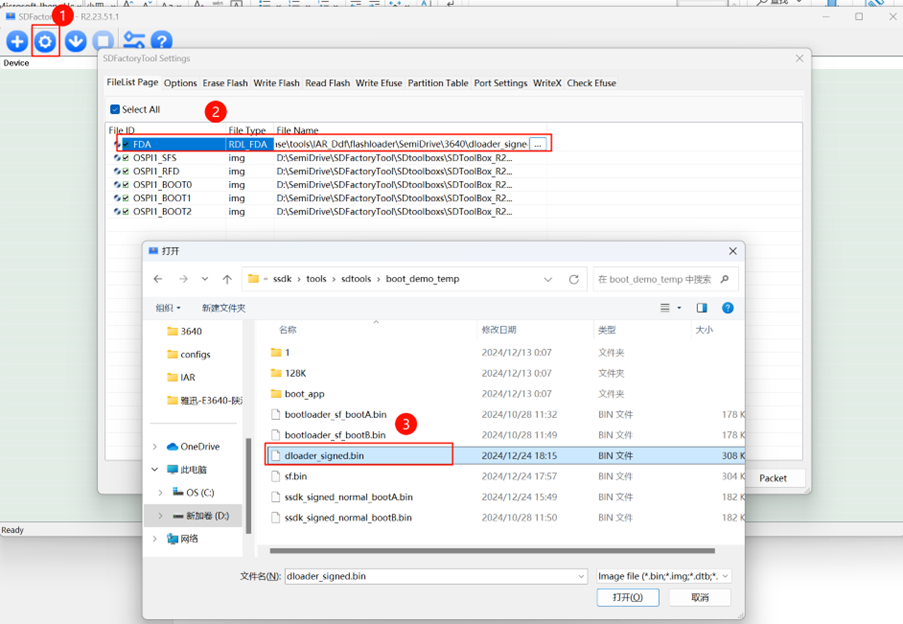
Replace the FDA with the bin file we just signed:
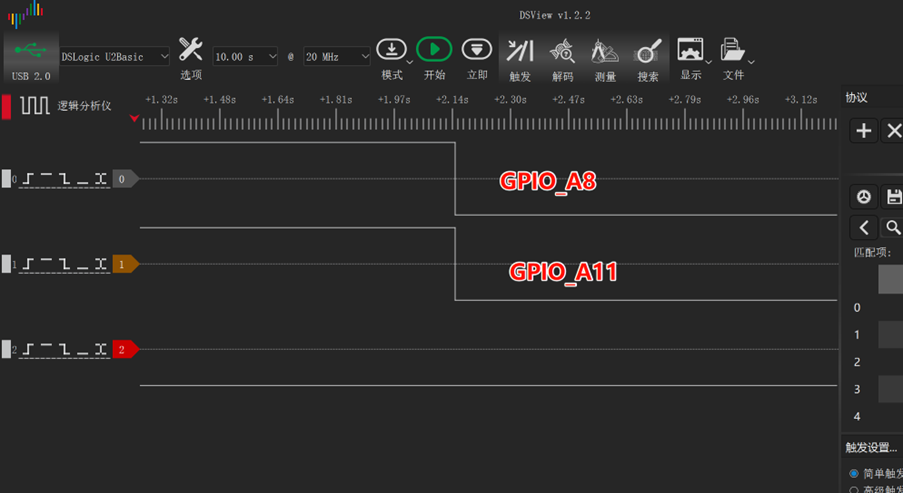
After clicking download, the specified pin will be pulled low:
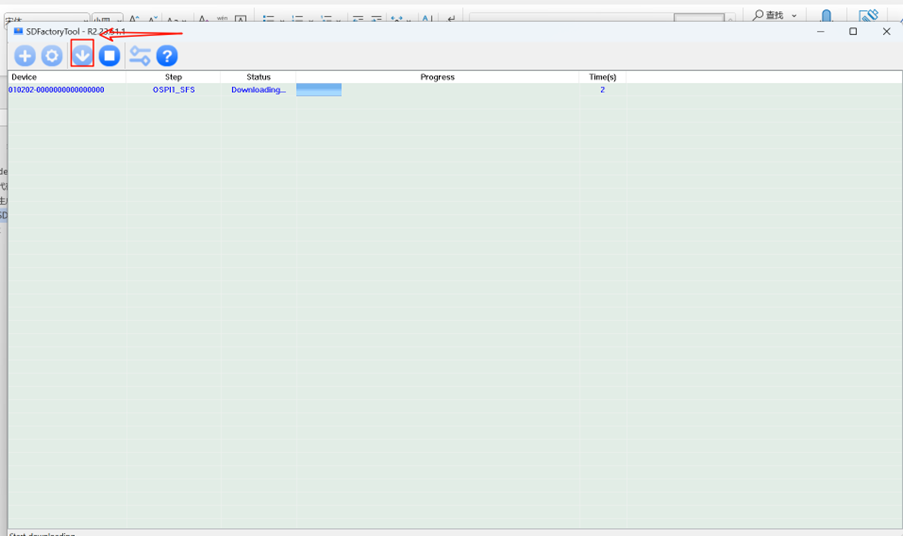
As shown below:
3. Reference Materials
"SDToolBox_User_Guide.pdf"
"E3400_E3600_MCU_TRM_Rev01.00.pdf"